This page contains affiliate links. When you purchase through the links provided, we may earn a commission.
How to set up a VPNNordVPN

How to set up a VPN: A step-by-step guide

Most popular

Plus

  • 30-day money-back guarantee
  • Secure high-speed VPN Threat Protection Pro™: Anti-malware and advanced browsing protection
  • Password manager with Email masking

Devices secured at once: 10

Monthly from

£3.49

Get NordVPN

VPNs (Virtual Private Networks) are a modern online service that makes a user's Internet experience much safer and generally better for them. The service removes any restrictions when it comes to otherwise unavailable events like watching live sports or geo-restricted content such as TV shows or movies, either at home or while travelling abroad.

A VPN does a solid job of keeping all your personal information and online movements private and protected. This means you can access geo-restricted websites or online content that otherwise might need you to sign in or prove your identity in specific countries.
When it comes to picking the best VPN to secure your data, have a better, safer online experience, and find something reliable and that is great value, it can be a bit of a minefield if you're new to this cyber world. The prospect of setting a VPN up may also feel daunting and even confusing to some, if you're unsure of how they work or what needs to be done to activate a subscription upon purchase.

Below, GOAL breaks down everything for you, and explains what's worth knowing about VPNs. From what one is, to what it does, to setting a VPN up to surf the web safely, to finding the best provider out there – look no further because we've got you covered!
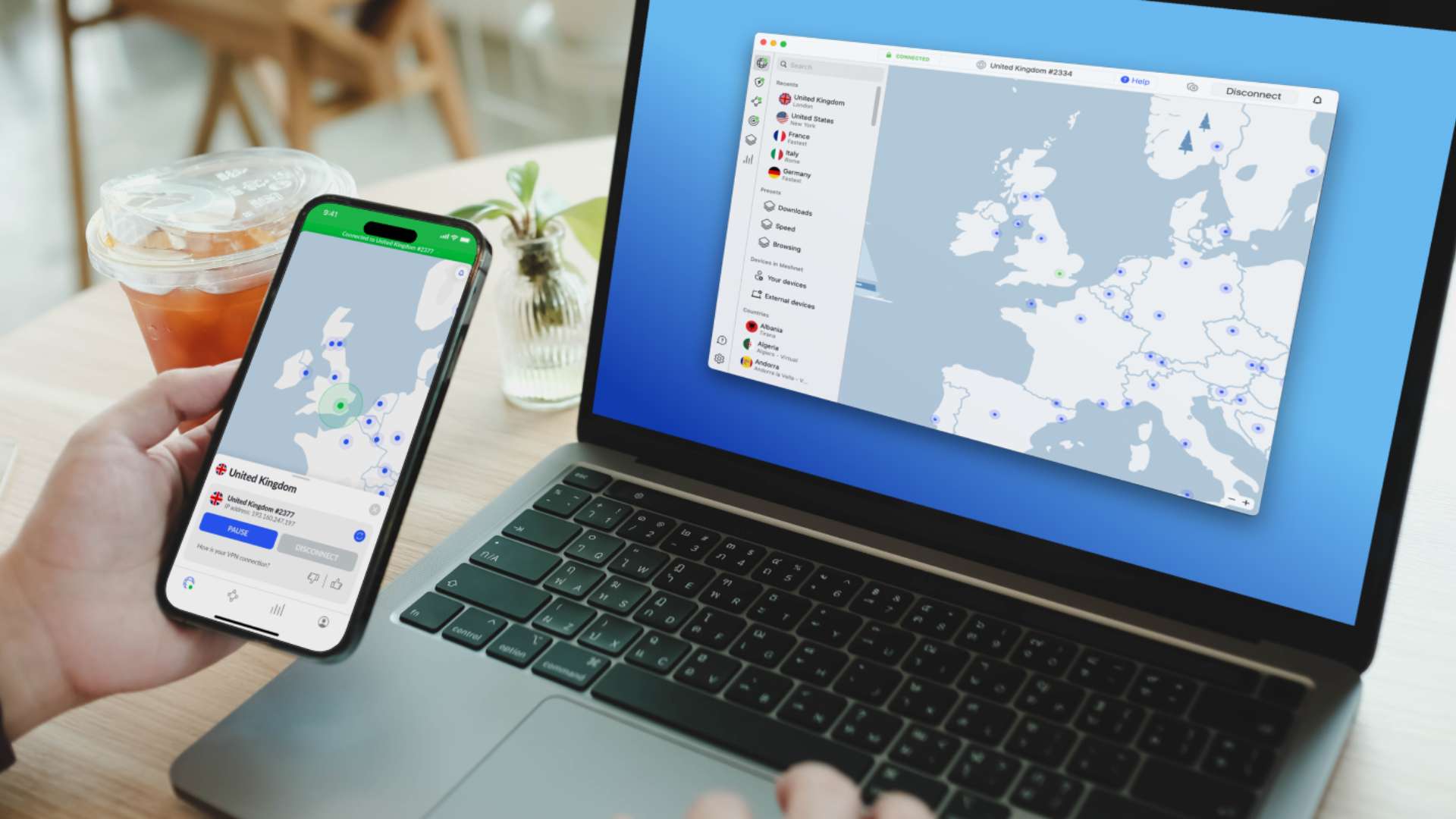
  • NordVPN in use from UKNordVPN

    What is a VPN?

    As mentioned earlier, the term VPN stands for Virtual Private Network. It allows a user to create encrypted communication over the Internet when they are online. In other words, a VPN provides access to your own private network by rerouting your internet traffic through a remote server (the VPN provider), in order to keep your time online as safe and secure as possible.

    Likewise, a VPN can be used anywhere in the world, as it effortlessly and safely connects you to a local server in the country you're in. It can also connect you to a VPN in another country to mask your current location, should you face certain viewing restrictions in your own country.

    You may think that your online browser is already safe, but viruses, third parties, pop-ups, and pesky hackers are still a problem in today's world, and the trusty VPN is here to offer an added layer of protection for you.

  • Advertisement
  • How to set up with NordVPN

    Getting started with NordVPN is surprisingly simple, requiring very little to be up and running in no time.

    A few simple steps after subscribing to whichever plan suits you best (more on the specifics below), and you're already connected for your next stream or web browse.

    Firstly, you'll need to download the NordVPN app, which is available across a number of platforms and devices, such as Windows and macOS for laptops and computers, as well as Android and iOS for mobile and tablet devices.

    The NordVPN app is also available to download on Smart TVs, Amazon Firesticks, and more, making it incredibly accessible and easy to obtain.

    Step-by-step guide to NordVPN

    1. Start by opening your web browser or App Store on your preferred device.
    2. Search for NordVPN in the App Store or Donwload NordVPN into your browser. The top result will be the correct one for the type of device you are using.
    3. Select the Download option on either the browser or the App.
    4. You will be asked to select your device and then click Download to begin.
    5. Once you have done this, you open the downloaded file and follow the simple on-screen instructions. The same process applies to the App, by opening it you will be instructed on how to proceed.
    6. Opening the NordVPN application will prompt a login, this being the one you have already signed up with via their website or you can create an account now.
    7. Once logged in, you will be able to connect to any server in any country you wish, with a world map in the centre and a scroll bar of countries to the left, where you can search for the location you desire.
    8. Now you can begin web browsing using your new NordVPN!
  • NordVPN on Android tabletNordVPN

    Activating added protection

    On top of a quick and easy VPN setup that allows you to open the NordVPN app and change your server location within seconds, there are other levels of protection to consider activating on your device.

    Threat Protection Pro (available with Plus and Ultimate deals) is something to activate separately after your VPN is connected. Threat Protection is available with Basic but has fewer features than the above two tiers.

    Standard Threat Protection includes:

    • Malicious domain blocker
    • Phishing domain blocker
    • Some Ad blockers


    But only Pro will offer these additionally:

    • 100% ad blocker
    • Malware scanner
    • Scam and fraud alerts
    • Malicious website blocker
    • Anti-phishing protection


    To set this up, simply open the NordVPN app and click the second symbol down on the left sidebar to open up Threat Protection Pro. You can also access Meshnet, Dark Web Monitor, Presets, and Statistics here.

  • Additional settings

    As mentioned above, there are extra options when you open the NordVPN app, so here's a rub through of what they are.

    • Meshnet: This helps you access devices over encrypted tunnels.
    • Dark Wed Monitor: This feature scans the entire Internet for credential leaks linked to your registered NordVPN e-email address.
    • Presets: Allows you to load up specific configurations, whether it's for streaming or gaming.
    • Statistics: Pretty self-explanatory, this screen tells you basic information, such as Ip address, connection time, weekly hours used, etc.
  • NordVPN imageNordVPN

    How to check if your VPN is working

    There are some very straightforward ways to troubleshoot, if you are experiencing any issues with connecting to your VPN.

    • Check your Internet connection. This sounds like an obvious one, but broadband and Wi-Fi signals can lose strength at times, and there's no accounting for electrical problems, maintenance or, in some cases, loose wiring. If in doubt, disconnect and reconnect to the Wi-Fi, check all plugs, wires and switches, and if there's still no joy, disconnect your router and reset it.
    • Check you've logged in correctly. Unless you auto save your username and password, typing it in each time can account for errors, so double check this and see if it makes a difference. If you forget your credentials (i.e. your username and/or password) there's a way to recover either via the login screen.
    • Check the VPN server you are trying to connect to. If your Internet and wiring is fine, it could be the actual server you are trying to connect to. Sometimes servers will go down, so try connecting to another one in or outside of your country.
    • Check for VPN software issues. Be sure to have the most up-to-date app or try re-installing your software or app if you suspect a bug. One other option is to reset your VPN settings to default, in case an alteration is the issue.
    • Contact customer services. if all else fails, NordVPN has 24/7 customer care at hand, who will have a trained staff member help you through whatever your issue is.
  • Why pick NordVPN?

    There is an impressive list of benefits when you sign up with NordVPN, as you can see.

    ✓ NordVPN allows up to 10 simultaneous connections, with dedicated apps available on various devices, including iOS.

    ✓ NordVPN offers more than 8,100 servers in 126 locations, including the Americas, Africa, Asia-Pacific regions and Europe, giving customers several flexible options.

    ✓ Because availability is so widespread, you’ll always have a fast server at your fingertips.

    ✓ It’s a four-times audited no-logs service, giving customers further peace of mind in regard to their privacy.

    ✓ NordVPN offers 24/7 customer service, with a support team on hand to help.

    ✓ It uses AES (Advanced Encryption Standard), making your data as secure as it can possibly be.

    ✓ It provides speciality servers that increase user security and bypass various other restrictions.

    ✓ NordVPN uses Threat Protection Pro, which offers stronger security than standard VPN protection. A benefit is it’ll all block ads and trackers.

  • NordVPN plans

    The deals available with NordVPN are very reasonably priced, offering three tiers of coverage, from a basic all the way to a fully comprehensive package. There's also a selection of contract lengths too, meaning you can sign up for short or longer term usage.

    While prices increase with each tier of service, the longer you sign up, the less you pay each month.

    Currently, you get a £20 gift card for Amazon when signing up to a Plus 2-year plan, and a £50 gift card when signing up to the Ultimate plan.

    Plan1-month plan1-year plan (per month)2-year plan (per month)
    Basc£10.19£3.89£2.69
    Plus£10.99£4.69£3.49
    Ultimate£12.89£6.69£5.39
  • NordVPN QR code NordVPN

    Why pick NordVPN?

    Not only is NordVPN the most popular and well-reviewed VPN by users, it has several benefits that, overall, make it the best choice for a VPN service. Its customer service is, as previously mentioned, 24/7 and has a strong success rate with existing subscribers. Price-wise, NordVPN is not the cheapest of the cheap, but it is modestly priced particularly for the level of service it offers. Easy to set up, filled with additional features to bolster safety and improve online use, it also boasts dedicated apps, a huge number of worldwide servers, 10 devices you can use it on, impressive speed loss numbers, and an efficiency that sees it stand above its competitors.